
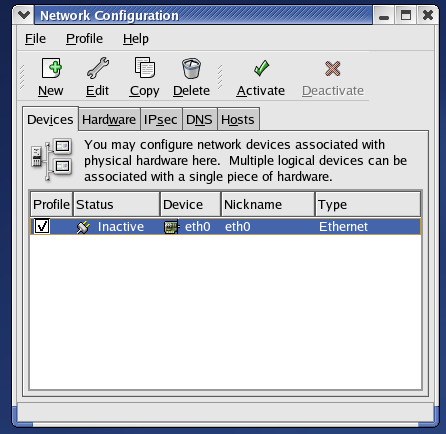
Click on the "hardware" tab and be sure your wireless card is listed there.
See below:
Return to the "Devices" tab and click the "New" button.
Select "wireless connection" from the "device type" list. You should
see a screen like this:
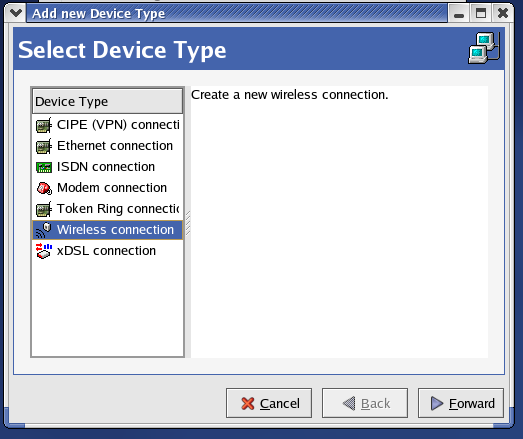
Click "Forward" and you'll see this screen:
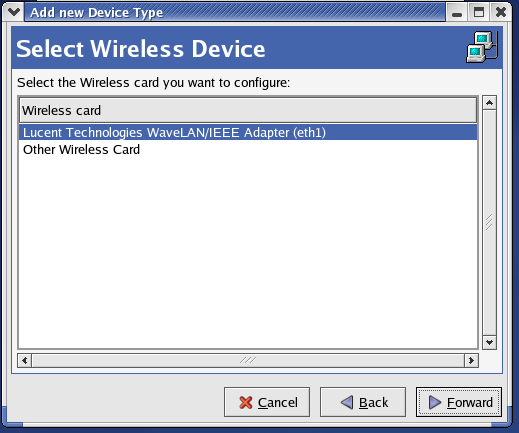
Select your wireless card from the list, and click "Forward". You will then see the "configure wireless connection" screen below:
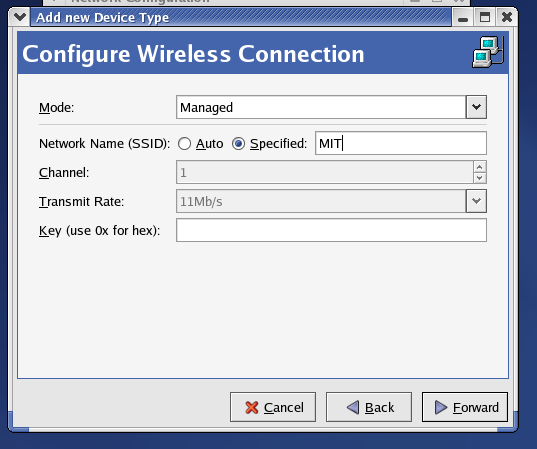
Click the "specified" radio button for network name, and enter MIT (All in caps). Make sure the "Mode" is managed, and leave all other settings at their defaults. Click "forward".
You will then see the "configure network settings" page:
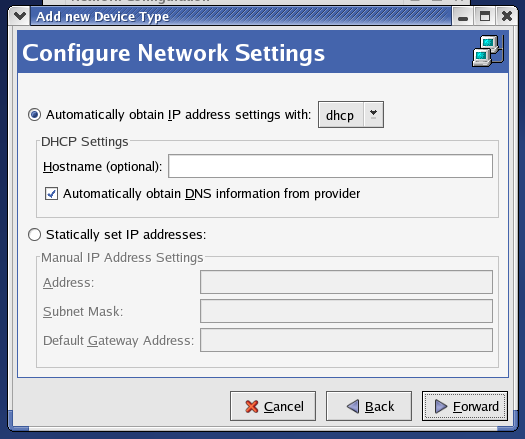
You most likely want to check the "Automatically obtain IP address settings with DHCP" button, however if you are using a static IP address, check that button and enter the settings there. Click "forward"
You will then see the confirmation screen:
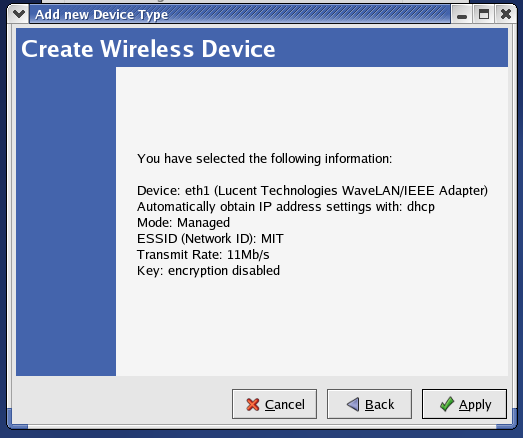
click "Apply" and you will be returned to the network device listing, and this time you should see a second listing there, like this:
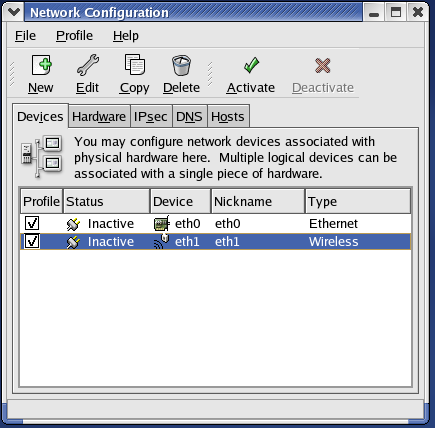
You can then select it, adn click the "Activate" button, and you should be able to use your wireless card. When you close the application, it will ask you to save your settings. YOu should choose "yes".
Insert the card and connect it to the network cable. You should hear
two beeps, indicating that it was successful. If you hear one beep,
followed by a lower-pitch beep, it was unsuccessful.
Go to the RedHat menu, choose System Settings, then Network
You may be prompted to enter your root password (insert picture)
You will see a screen similar to the one below:
Return to the "Devices" tab and click the "New" button.
Select "ethernet connection" from the "device type" list. You should
see a screen like this:
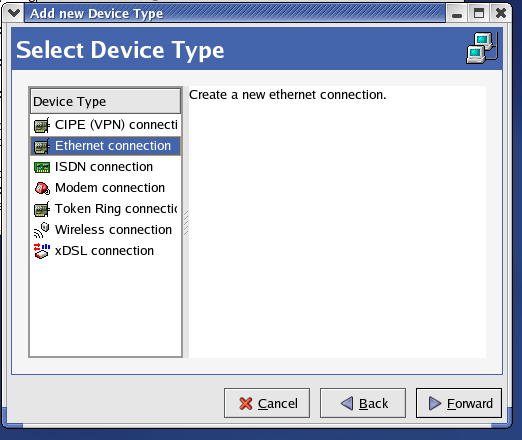
Click "Forward" and you'll see this screen:
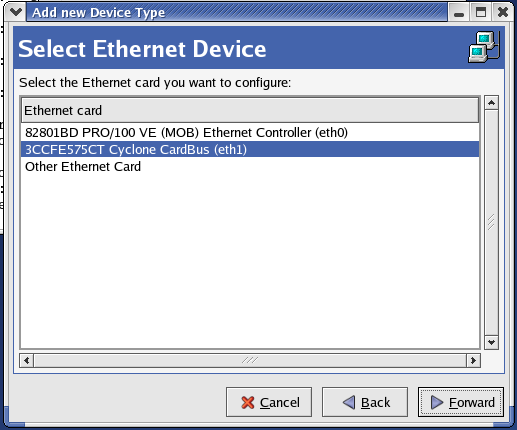
Select your card from the list, and click "Forward".
You will then see the "configure network settings" page:
You most likely want to check the "Automatically obtain IP address settings with DHCP" button, however if you are using a static IP address, check that button and enter the settings there. Click "forward"
You will then see the confirmation screen:
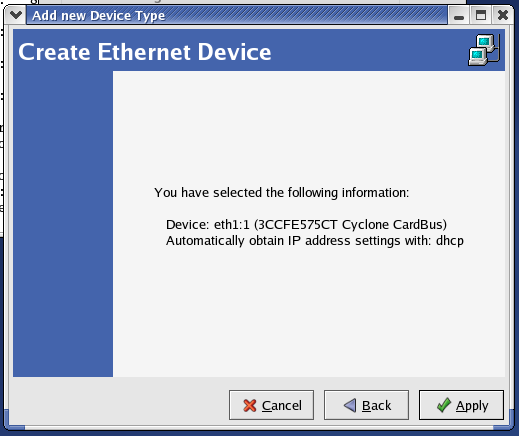
click "Apply" and you will be returned to the network device listing, and this time you should see a second listing there.
You can then select it, adn click the "Activate" button, and you should be able to use your wired card. When you close the application, it will ask you to save your settings. YOu should choose "yes".